Elements and User Interfaces (Reference)
This section of the Help describes individual parts of the Innovator user interface.
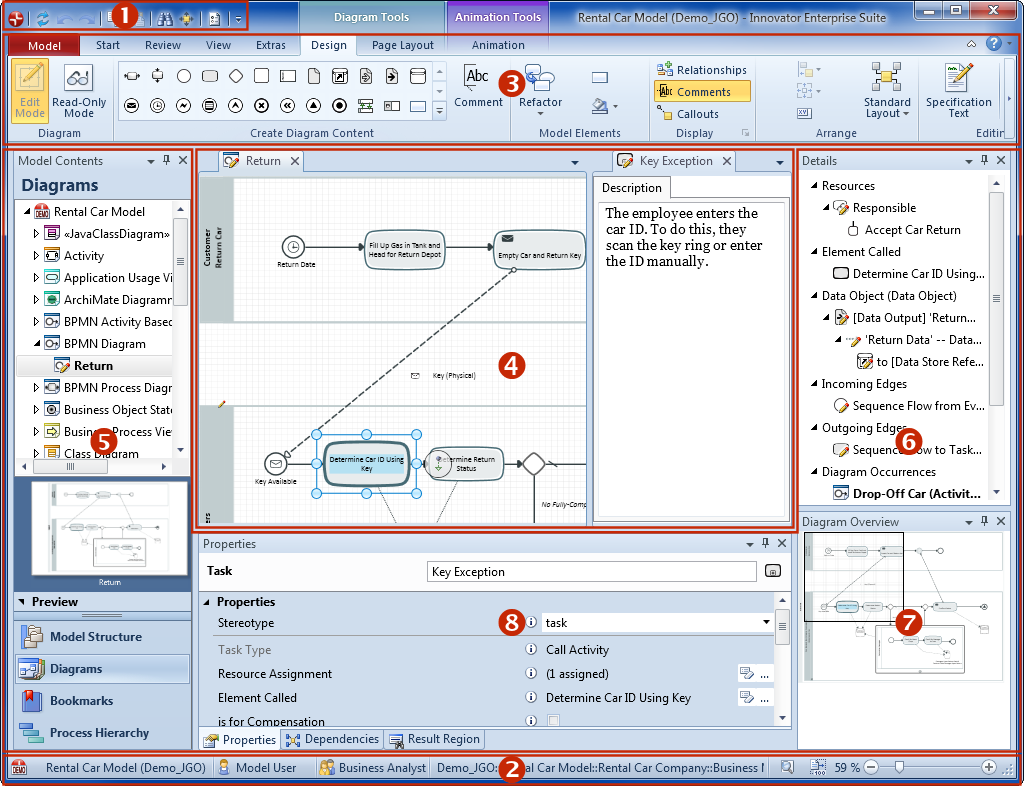
The Innovator X Generation GUI is made up of the following elements:
- System menu and toolbar for quick access in the title bar (1),
- Status bar (2)
- Ribbon including Model tab (3)
The Model tab contains the backstage views Recently Used, Open & Log-in and New as well as other backstage views and commands depending on what model you are in. - Workspace (4-8)
The workspace for a model is divided into several window areas:- The Model Contents area (5) serves as a table of contents for the model. The Model Structure can be extended with the Model Element List, which displays all the subordinate elements (owned elements) of a model element selected in the model structure.
- The central document area (4) primarily displays diagrams, tables or specifications from this model. The start page is also shown in the document area.
- Tool windows (6-8) provide specific structures and functions for navigating in the model, getting information about the model and its elements and so that you can work with particular details of model elements. Tool windows can be assigned to the document area. The tabs are at the top (8).
- Dialogs and wizards are used to obtain certain inputs or confirmations from the user.
The way in which the user interacts with Innovator has been revised compared to the predecessor products Innovator eXcellence and Innovator classiX; it is now easier to find and use application functions. The general look and feel of the user interface has been given a face-lift and the latest technology has been used so that the user can now get the results they want at the click of a button instead of having to trawl through complicated dialogs as was previously the case.
The Innovator X Generation GUI is based on the current Microsoft technology (.Net-Framework, Windows Presentation Foundation (WPF) ) and Actipro Software's commercial GUI library "WPF Studio". This means you can e.g. structure the interface elements as you want them and save this layout in its own perspective so you can use an interface best suited towards your uses.
The central document area displays diagrams, tables, specifications or dependencies.
- Relationships between the model elements are modeled in the diagram.
- The table editor is used for quickly editing related data.
- Specification texts describe model elements within a certain aspect.
- The dependencies editor is used for easily editing large sets of similar dependencies.
- You can carry out various mappings (ER-DB, DB-ER etc.) using the Mapping window.
Tool windows provide specific structures and functions for navigating in the model, getting information about the model and its elements and so that you can work with the model elements.
General Tool Windows
General tool windows are not linked with a specific process but are always available for model processing.
-
The Details window shows elements which are linked with the element selected. Unlike the model structure, all roles are taken into consideration not just the owner. Elements which do not even appear in the model structure can also be shown. You can customize the structure of the Details window in the configuration editor in the Documentation Structure view (browser configuration).
-
A model element's essential properties can be edited in the Properties tool window. The properties are grouped according to properties, labels, access rights etc. Certain properties can also be edited in the document window or in other tool windows.
-
Use the Dependencies tool window to maintain dependencies of the selected element.
-
Use the Result Region tool window to collect any number of elements to e.g. edit multiple elements in one fell swoop.
-
The Verification Results tool window shows model verification results.
-
The Specification Preview tool window shows the specification texts of the selected element.
-
The Diagram Overview tool window shows the entire contents of the active document and supports navigation.
-
The Info tool window shows information about an element.
Tool Windows for Processes
Tool windows for processes are linked with a certain process and require special prerequisites to be used to the best of their ability.
-
Use the DB Manager tool window to align an Innovator database model with a real database in a DBMS.
Dialog boxes (dialogs for short) are called by special commands or events and shown floating in the user interface. They are used to obtain certain inputs or verifications from the user.
Wizards can be used for complex task completion; a wizard takes you through a sequence of necessary dialog steps.