Dependencies Editor
The Dependency Editor is used for easily editing dependencies between various elements.
Purpose
The Dependency Editor is used for easily editing dependencies between various elements outside of the diagrams.
If model elements are selected in the interface, you can open the editor for editing dependencies of these model elements. Use the call command to choose whether dependent or required elements of the selected initial set are to be retrieved.
-
 Start>Open>Dependent Elements
Edit relationships to model elements which are dependent on the selected elements. Privilege 'Dependency Editor' is required.
-
 Start>Open>Required Elements
Edit relationships to the model elements which the selected elements are dependent on. Privilege 'Dependency Editor' is required.
Structure
The initial set is made based on element selection in the interface by calling one of the two commands, Dependent Elements or Required Elements and shown as a precolumn in the window on the left-hand side.
Innovator calculates all elements which are linked with the initial set's elements via a dependency of any type. These linked elements are shown in the table header.
The executed command determines the direction of the dependencies which apply when determining linked elements.
-
Dependent Elements
The elements in the initial set are the target of the dependencies; the dependent elements are retrieved as linked elements and listed alphabetically in the header.
-
Required Elements
The elements in the initial set are the source of the dependencies; the required elements are retrieved as linked elements and listed alphabetically in the header.
Once a dependency type is selected from the top left-hand drop-down list, existing elements of this type are shown as arrows in the matrix. If there is more than one dependency with the same source and target then this is shown by a counter in the respective cell.
Cells are shown as grayed out if it is not possible to create a dependency of the type currently set in them.
If the cell is blue, this indicates existing dependencies with types that do not correspond to the type currently set.
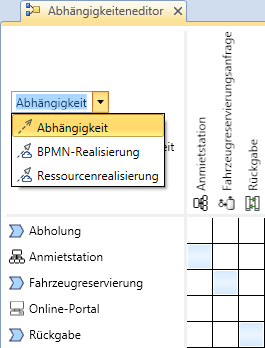
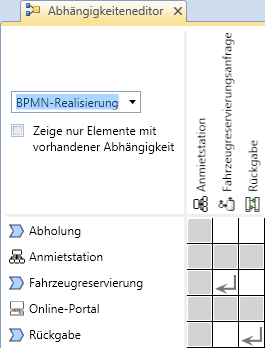
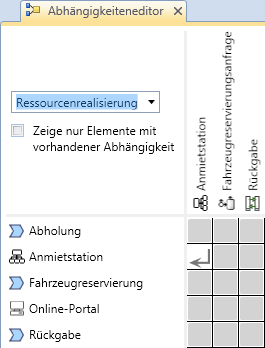
You can use the Show elements with existing dependencies only check box to remove empty rows and columns from the view.
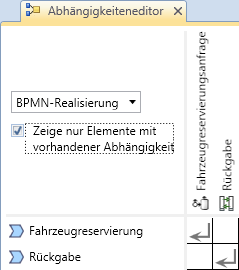
You can open any number of dependencies editors - even those with identical initial sets.
Using Dependency Editor
Selection
Multiple selection is separately possible for
-
Elements in the initial set
-
Linked Elements
-
Cells in the matrix (i.e. dependencies)
If more than one dependency is represented in a cell then all these dependencies are selected when the cell is selected.
Mixed selection of elements from various areas is not possible.
Dependent windows like the Detail View or Properties area react to the selection made in the matrix. General commands for elements such as Delete or Add to Result Region can be carried out for the selection made in the matrix.
If precisely one cell is selected, it is possible to move it using the arrow keys in the matrix.
If precisely one cell is selected, you can use the space bar to create a dependency of the type currently set, as long as this type of dependency does not exist already. If one already exists, this will be deleted.
Drag-and-Drop
-
Extending the Initial Set
Drag the elements from another window and drop them in the initial set.
If empty rows and columns are hidden then it could be the case that element sets are extended but the new elements are not shown after they are dragged there. This is why empty rows and columns will be shown again.
-
Extending the List of Linked Elements
Drag the elements from another window and drop them in the list of linked elements.
If empty rows and columns are hidden then it could be the case that element sets are extended but the new elements are not shown after they are dragged there. This is why empty rows and columns will be shown again.
-
Creating Dependencies
Drag elements from the initial set and drop them on a column.
Dependencies are created between the column's element and all selected elements in the initial set.
The mouse pointer shows you whether you can create dependencies when carrying out the drag-and-drop.
Linked elements can also be dragged to rows in the same way.