Editor for Whiteboard Diagrams
Use the whiteboard diagram editor to visualize relationships between various diagrams and their elements.
Purpose
The whiteboard diagram is an overview diagram used for visualizing relationships between elements in different diagrams and elements of different notations.You can insert tables in the whiteboard diagram using diagrams which these tables appear in.
The whiteboard diagram is an Innovator-specific diagram type.
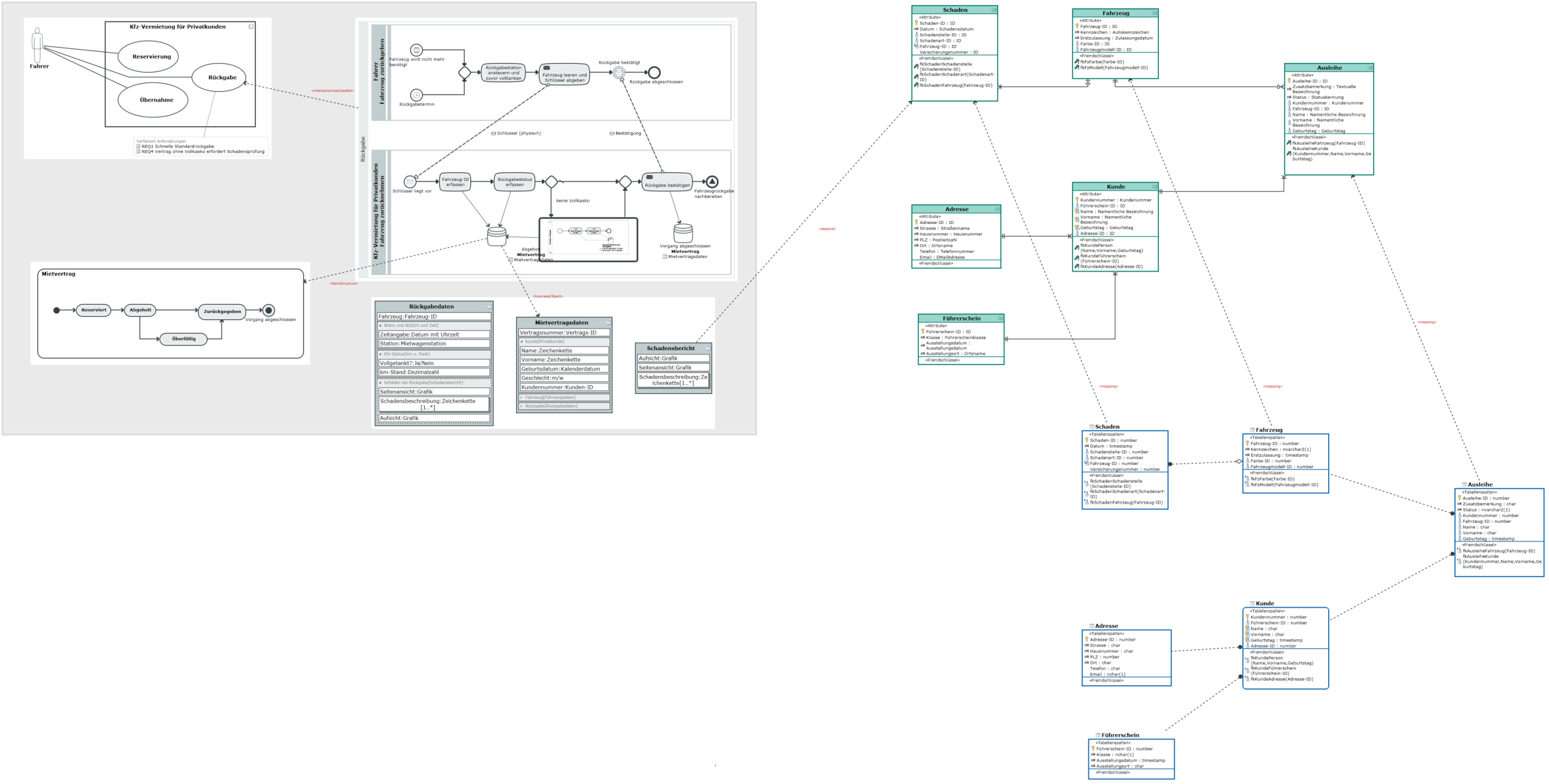
Supported Whiteboard Diagram Processes
Inserting Diagrams
You can drag a diagram template from the gallery or an existing diagram in the model structure and drop it in the whiteboard diagram to show it as a diagram node.
The following diagram types are possible, depending on the Innovator product you are using:
| Diagram Type | Innovator for Business Analysts |
Innovator for Software Architects |
Innovator for Database Architects |
|||
|---|---|---|---|---|---|---|
| new | Existing | new | Existing | new | Existing | |

|
|
|||||
| Business Resources Diagram |
|
|
||||
| Structure Diagram |
|
|
||||
| Diagram for Business Object States |
|
|
||||
| Mask Flow Diagram |
|
|
||||
| Organizational Chart |
|
|
||||
| Use Case Diagram |
|
|
|
|
||
| Class Diagram |
|
|
|
|
||
| Component Diagram |
|
|
||||
| Java Class Diagram |
|
|
||||
| Activity Diagram | –* |
|
||||
| State Diagram | –* |
|
||||
| Entity Relationship Diagram |
|
|
||||
| Database Diagram |
|
|
||||
* UML activities (activity diagrams) and UML state machines (state diagrams) cannot be created without reference to a classifier (Behaviored Classifier) with the behavior they are describing. You can only drag these two diagram types as existing diagrams from the model tree and drop them in the whiteboard diagram.
You can create elements in the respective diagram but you cannot create elements in the diagram node in the whiteboard diagram. Jump to the diagram in the respective diagram editor by double-clicking on the diagram.
It is possible to select a diagram's elements to e.g. modify their properties.
Changes made to diagrams are shown immediately in the whiteboard diagram.
Visualizing Relationships
You can show or hide existing relationships between elements of various diagrams and create new relationships between elements in different diagrams.
Showing or Hiding Relationships
Existing relationships between elements work in the same way as with the method Showing and Hiding Relationships in the Diagram.
Creating Relationships
You can use the standard method when creating relationships between elements in different diagrams and use the carousel for Creating a Configured Relationship.
There is normally already numerous relationships to certain element types that can be chosen from the carousel for an element selected in the diagram. You can set many further relationship types between almost all element types in the configuration.
You can also create relationships for inflowing and outflowing dependencies between elements of different diagrams using the tool window Dependencies or Dependency Editor.