Mini Toolbar
The mini toolbar appears above the context menu and contains icons for typing diagram elements.
The mini toolbar appears above the context menu of a selected diagram element if the diagram element's type or one of its properties can be assigned in this way. You can assign or undo assignment by clicking on the respective icon.
Examples
Mini Toolbar for a Task
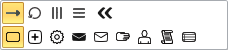
Select the icon for the type of execution you want from the top row of the mini toolbar (loop properties type). The corresponding icon is shown in the flow node.Select the  icon in the mini toolbar to reset selection.
Select the icon for the task type from the bottom row of the mini toolbar. The task becomes a call activity if you select the plus sign icon. If you select another icon, the corresponding BPMN task type is set and the marker is shown in the task icon.Select the  empty task icon in the mini toolbar to reset selection.
Alternatively, you can also change the type directly in a task's Properties.
Mini Toolbar for a Subprocess

Select the icon for the subprocess type from the left-hand part of the mini toolbar.Select the  icon in the mini toolbar to reset selection.
Select the type of execution (loop properties type and trigger type) from the right-hand part of the mini toolbar.Select the icon in the mini toolbar to reset selection.
Alternatively, you can also change the type directly in a subprocess' Properties.