An anchor represents a container for requirements and use cases in the Innovator model. This is normally a section title in the Word document.
Connecting to a Model
You first need to connect to an Innovator model to be able to edit requirements and use cases in this model. You can connect to any number of models at the same time.
The current model is shown in the Source: drop-down list in the Elements tab in the Innovator for Microsoft Word tool window; all of the model's requirements and use cases are shown below it. You can only interact with the model currently selected at the time.
Creating an Anchor
Prerequisites
Please ensure that you are connected to at least one Innovator model and that it is selected in the tool window in the Source: drop-down list in the Elements tab.
Context
An anchor represents a container for requirements and use cases in the Innovator model. In the Innovator model, this is any element that can contain requirements and use cases. The precise element types depend on your model configuration.
The anchor is normally a section title in the Word document.
Defining an anchor connects this section title in the Word document to a container element in the Innovator model for the Innovator Office Integration user. Innovator Office Integration is then informed that all subsequent requirements and use cases should be inserted below this anchor in the document. This step is very important when synchronizing offline elements (See: "Synchronizing Requirements and Use Cases with an Innovator Model").
How to proceed
-
Place the mouse pointer in the Word document where you want to insert the anchor. To use existing text as the anchor text (section title), select the text.
-
Select Innovator>Model>Define anchor.
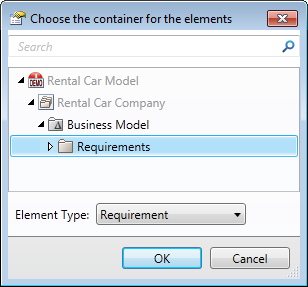
The Choose the container for the elements dialog appears.
-
In the model tree, select the model element which the anchor is to represent.
-
Click on OK.
The anchor is inserted in the document. If you have selected text in the document, then this becomes the anchor text; if you have not selected text, then the model element's name is used.
Deleting an Anchor
How to proceed
-
You can delete an anchor using Word's standard delete function (e.g. select text and press [Backspace]).
