Quick Access Toolbar
The quick access toolbar (QAT) is a small, customizable toolbar which provides a set of commands either set by the application or selected by the user.
The quick access toolbar consists of a list of commands which are either set by the application ("standard commands" for the application) or individually selected by the user. This toolbar can also contain commands which are not available in the ribbon.
The quick access toolbar has a drop-down menu  to the right of the command icons; this menu contains the complete set of standard commands and many QAT and ribbon options.
Figure: Example for Innovator QAT
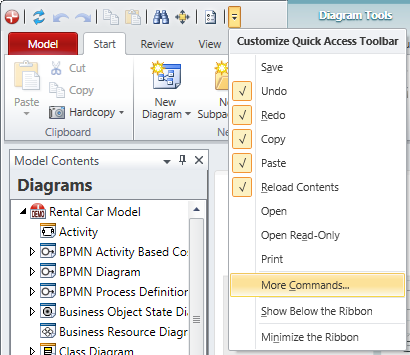
Standard commands can be made visible by ticking them in the selection menu in the toolbar. The order of activation determines the order in the toolbar.
The command More Commands... opens the Options dialog at the Customize tab, where you can customize the quick access toolbar. The standard commands are not available for selection here. You can use the dialog to set separators and change the order.
The commands Undo (Ctrl+Z) and Redo(Ctrl+Y) are only accessible via the quick access toolbar. They are available in text boxes and for layout changes to diagrams.
The quick access toolbar can be found in the title bar of the program window as standard; it is also possible to configure it so that it is shown below the ribbon.
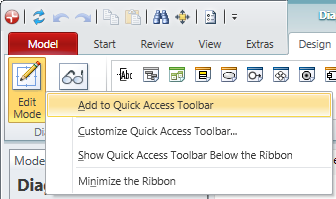
You can add individually-selected commands to the QAT either using the command More Commands... in the QAT's drop-down menu or using the context menu of the command you want to add.
Figure: Context menu for a command