Compare model elements Editor
You can use the Compare model elements editor to compare an element from the current model with another element from the same model or from a different model and display the differences. You can use filters to make the evaluation easier to read.
Purpose
The Compare model elements editor shows the differences between elements.
Use the editor to set what differentiates two elements or model branches, as e.g. a model was copied and you need to determine what has been changed since this copy was created.
The root elements to be compared need to have the same element type for them to be able to be compared. You can use the editor for comparing an element from the current model with another element from the same model or from a different model. The two elements and their subelements are always compared.
Use the Merge Innovator tool for comparing configuration profiles.
Features
- Set the conditions that identify the elements to be compared as being the same using the UUID or name. You can use case sensitivity for the name.
- Explicitly set that the elements to be compared should be viewed as the same element. (requirement: both elements have the same element type)
- The structures for the elements to be compared are combined and displayed as a tree in the hierarchy level. You can tell by the node's color and icon whether the elements are the same, different or whether only the subelements are different or whether only the left or the right branch contains subelements.
- Compare and view differences between properties, direct subelements and descriptions of the element selected in the tree.
- Filter elements which are only in the left or right branch
- Filter similar elements
- Filter elements with a certain element type
- Filter elements with a certain stereotype
- Filter specific elements (and subelements)
- Filter properties of a certain type
- You can save settings (for comparing root elements and filters)
- Search in the tree by name
Structure
The respective Compare ribbon tab appears for the Compare model elements editor with the model elements to be compared and the comparison results in the Diff Tools context tab. It is always the main focus if the editor becomes the active window.
The editor is split into a top selection area for setting the model elements to be compared and an evaluation area below it with a hierarchy and property area.
Structure of the editor
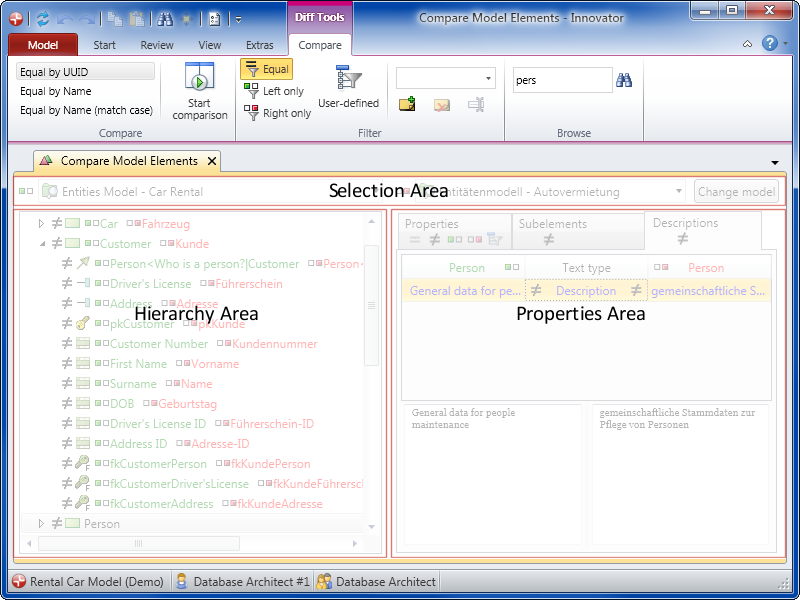
Selection Area
The selection area in the editor's header shows both elements to be compared with each other. The model which contains the element is shown at the top; the stereotype icon and the name of the element to be compared are shown below this.
The left element can only come from the model which the editor belongs to. The right element can also be from another model.
There is also normally a selection box which contains all models below the system models. This selection box is not available for the right element until you have logged-in to the right model.
An Only models button may also appear instead of the drop-down lists so that you can switch back to the drop-down lists. Buttons are always shown if the selected element is not in the drop-down list. You can select other elements using drag-and-drop, e.g. drag elements from the model structure tree and drop them where the selected element is shown.
Evaluation Area
The bottom evaluation area contains information once you carry out the comparison with the Compare>Compare>Start comparison command.
The evaluation area is split into a left and right column: the hierarchy area and the properties area.
Hierarchy Area
The left-hand column is the hierarchy area and contains a tree. The root nodes always represent both elements being compared. The subnodes are therefore the respective subelements.
If the left and right subelements were determined as being the same then two elements are then represented by a node.
If they were not recognized as being the same then each element gets its own node. The nodes then get given an icon.
 Element in the left-hand model
 Element in the right-hand model
The Equal by drop-down list sets the conditions for recognizing whether two elements are the same. You can also mark two elements as being the same at a later stage using the context menu. If two elements which are shown as being the same have different names then the node shows both these names. An icon before the name then shows which name belongs to the left and which to the right element. Apart from stereotype icons, all other icons have a tool tip which appears when you hover over them with the mouse pointer.
Properties Area
The right column contains three tabs with detailed information about the node selected in the hierarchy area.
-
Properties
All properties for both elements which have not yet been filtered appear here.
- Properties of the element type
- Stereotype properties
- Labels
The tab contains various icons which give a rough overview of which properties the node has or whether properties were filtered out.
The actual content is a table split into three columns. The middle column contains the name of the property. The left column contains the respective value of the left element and the right column contains the value of the right element. The middle column also contains icons which show whether the values are the same, not the same or only exist in one of the elements.
-
Subelements
The tab contains various icons which give a rough overview of which subelements the node has or whether subelements were filtered out.
The actual content is a table split into three columns. The middle column contains the element type of the subelement. The left column contains the name and stereotype icon of the left subelement and the right column contains the name and stereotype icon of the right subelement. The middle column also contains the same icons shown in the tree.
-
Descriptions
The tab shows various icons which show whether there are different texts.
The actual content is a table split into three columns. The middle column contains the name of the specification text. The left column contains the first row of the left text and the right column contains the first row of the right text.
The complete texts of the specification texts selected in the table are shown below the table.
How to proceed
If you want to compare various elements from one model you can use the mouse to drag these (e.g. from the model structure) to the left or right root element's selection area.
If you want to compare elements from different models, log-in to these models as you would normally. Open the comparison editor in one of the models. Drag the element to be compared in another model using the model's tab (at the bottom of the document area) which the editor is shown in. Hover over the tab. This jumps to this model and you can drop the element into the right root element's selection area.