Change model Dialog
If you need to log-in to an Innovator model for certain processes without the model being opened in the Innovator interface, then this dialog appears; you can then select the user and role for logging-in in and enter a password if required.
Purpose
You need to log-in to an Innovator model for certain processes without the model being opened in the Innovator interface. Login then means that model data is available for e.g. model comparison.
The dialog enables selection of the model. user and role to log-in to the selected model. A password may also need to be entered for successful login.
You may need to enter information into the dialog, depending on whether the model's repository is used in single sign-on mode or not and whether a password is configured for the user in the Innovator user management or not.
Structure
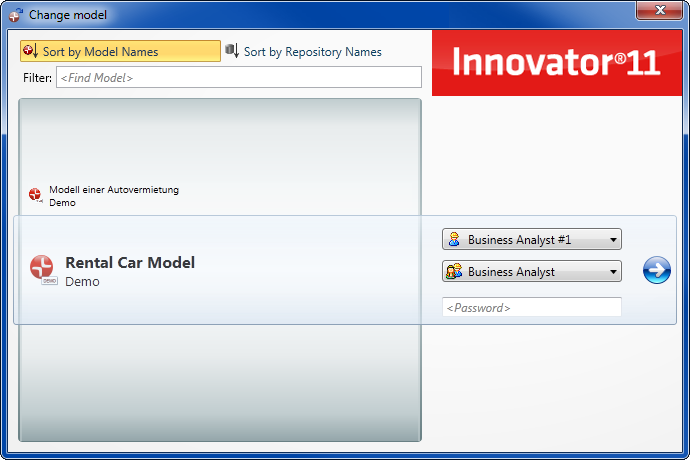
The dialog consists of various elements; some of these may be deactivated depending on the situation.
-
 Sort by Model Names button
The button sorts the model lists according to model names.
-
 Sort by Repository Names button
The button sorts the model lists according to repository names.
-
Filter field
A text pattern can be entered in the field for constraining the model list.
-
<Models> drop-down list
The drop-down list contains all models the user can access.
-
 User drop-down list
The drop-down list contains at least one entry.
-
 Role drop-down list
The drop-down list contains all configured roles of the previously-selected user. There are no roles for the Model Administrator and Guest users.
-
<Password> field
A password can be configured in the user management for users, including Model Administrator and Guest; this must then be entered here.
-
 button
Confirm your information with this button. Innovator verifies the password and shows the message "Password mismatch" if you have not entered the password correctly.
Logging-In to Another Model
Context
If required, change the sorting criteria for the model list and constrain the list by entering a text pattern.
Select the user name and role. A password is managed to the users if necessary.
The drop-down list User contains all user names known in the model. Only the name of the authorized user appears alongside the Model Administrator and Guest roles when using single sign-on. Only the name of the authorized user appears for local models.
The MID user configurations for the model templates included within the scope of delivery contain the following default users:
-
The standard user Model Administrator has all rights for use and configuration of the model. Therefor he should always have a password.
-
The standard user Guest has only the "read-only right" and no further rights. He is the only user who can log-in to the model more than once. The read permission can be restricted by the model administrator.
As a guest you can read the model without the risk of changing something accidentally. You must select a different user to work in the model.
A Role also needs to be selected when a user is chosen. The default users Model Administrator and Guest do not have roles.
If a user is already logged-in, then the user who is logged-in and their role is shown when opening. These cannot then be changed.
If the <Password> field is activated and a password was assigned for the user, then the password needs to be entered. You do not need to enter the password if you are already logged-in as another user or Guest or if you chose the authorized user when logging-in for single sign-on. An assigned password always needs to be given when logging in as Model Administrator.
Any obstacles that exist for login are shown below the login group.
Following successful login as a normal user, the model is added to the list of most recently used models (Recently Used backstage view).
How to proceed
- Click on the Sort by Model Names or Sort by Repository Names button to set the sort criteria.
- Enter a text pattern in the Filter field to constrain the model list.
- Select a user from the User drop-down list.
- Select a role if the Role drop-down list is active.
- Enter the user's password in the <Password> field.
-
Click on
.The dialog is closed. The connection to the desired model exists.