Intellisense Dialog
The Intellisense dialog appears in specific editing situations as an input help. Alongside your input it provides names already known in the model, restricting this selection accordingly as you enter additional characters.
Purpose
Intellisense dialogs are a form of "intelligent" input help. They appear in specific editing situations as drop-down lists, for the type completion of attributes (UML and ER), operations and pins.
Input
The Intellisense dialog is opened with [Ctrl]+[F2], even when the field is active. In this case, the modified data are first taken from the field and then the dialog is opened. In the event of incorrect input data, an error message appears and the shortcut [Ctrl]+[F2] is ignored.
Names already known in the model are provided in the drop-down list alongside your input. This selection is restricted accordingly as you enter additional characters.
Close the Intellisense dialog by clicking on  or using the shortcut [Ctrl]+[Enter].
Example: Creating an Operation of a Class with Parameters
Prerequisites
You have created an operation in a class.
Context
The name is not the only deciding factor for an operation, the amount and type of input and output parameters also play a role. Here you can find out how to edit an operation's whole declaration here. The Intellisense dialog will then appear as input help.
How to proceed
-
Select the operation in the class with the left mouse button.
The selected operation has a blue frame around it.
-
Select the Edit Declaration command from the operation context menu or press the shortcut [Ctrl]+[F2].
The dialog for editing the declaration opens. The multi-row editing field initially contains the name of the operation and an empty parameter list, e.g. "
Operation()". -
Enter the name of the first parameter between the parentheses followed by a colon.
The Intellisense dialog opens as input help and shows all known classifiers in the model in alphabetical order as this parameter's type:
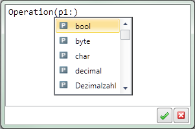
Entering the first few letters shortens the input help to the types that still match step-for-step.
-
Select the type you are searching for in the input help list.
The parameter's type is adopted in the editing field after the colon.
- In order to define further parameters and their type, enter a comma and repeat steps 3 and 4.
- In order to define output or input/output parameters, enter the key word
outorinoutbefore the parameter name. - In order to define the return type for the operation, enter a colon after the closing parentheses and repeat step 4.
-
Click on
or press the shortcut [Ctrl]+[Enter] in the editing field.The declaration is accepted.