Display Options Dialog
You can overwrite configured display options for diagram content locally in this dialog. The settings apply for all elements of the same type within the active diagram.
Purpose
You can overwrite configured display options for diagram content locally in the diagram in this dialog.
The appearance of diagram elements is set in the model configuration with display options for each graphic element stereotype combination of a displayed logical element. It is possible to select different displays for an element type's various stereotypes so that e.g. key words are only displayed for a special stereotype. It is also possible to select various display options for various graphic occurrences of the same logical element (e.g. interfaces as classifier nodes, socket/ball or compartments).
You can use the model configuration to allow individual display options for certain graphic element stereotype combinations. You cannot make changes to properties which can be used more than once, such as e.g. icon and name properties. You can find more details in the Configuration Manual, chapter 4.3, "Configuring Display in Diagrams".
Structure
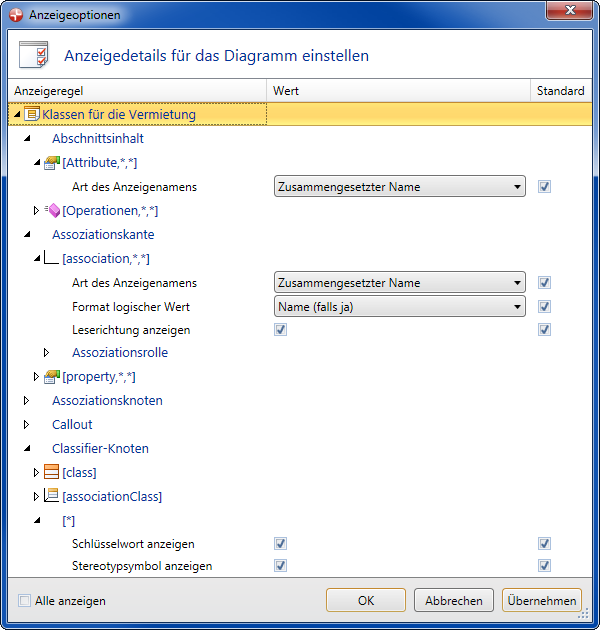
The dialog shows all permissible element types of the diagram in hierarchical order according to the configuration set; the configured display rules are also shown for each element type. However, the display is limited to elements and rules that you can change according to the configuration as default.
If precisely one element (node, edge, compartment, frame etc.) is selected in the diagram, then the respective display rule is jumped to in the dialog. This makes it easy to find the setting for the diagram element.
Individual display options apply for all elements of the same type within the diagram.
You can select a Value for each display rule.
If the Standard check box is activated, you can restore the configuration settings of an individual display rule at any time, even if you have already saved changes.
You can also use the Show all check box in the footer to show the display rules for which the change in the diagram is disallowed owing to the model configuration. This enables you to see how the model configuration affects the current diagram.
If no display options or settings which can be changed are configured for the diagram type, then a message appears instead of the tree. However, you can see any settings made by the model configuration by activating the Show all check box.
Opening the Dialog
Prerequisites
A diagram is opened and reserved for editing.
Context
You want to overwrite the configured display options for the diagram content locally in the diagram.
How to proceed
- To view the display options for a particular element type in the dialog, select an element in the diagram.
-
Select the
 dialog launcher in the Design>Display menu group.
The Display Options dialog opens.
If there are settings that can be changed for the selected element, then the appropriate display rule is shown.
A display rule is selected if there are settings for the respective display rule. The rule is only displayed and cannot be modified.
Modifying a Display Rule
Prerequisites
You can tell by the check box in the Standard column which settings can be changed.
How to proceed
-
In the Value column, select a value from the drop-down list or deactivate the check box.
The value is modified and the check box in the Standard column is deactivated.
- Click on Apply to see the effect in the diagram.
Resetting Local Display Rules
Context
You want to reset modified display rules to the default settings form the model configuration.
How to proceed
-
In the Standard column, activate the check box for the display rule that you want to reset.
The value changes to the value set in the model configuration. (Deactivating the standard has no effect.)
- Click on Apply to see the effect in the diagram.