Showing and Hiding Relationships in the Diagram
You can hide existing relationships to make it easier to read a diagram. You can show relationships which you created independently from the diagram to make them visible.
Prerequisites
Diagram exists, is opened and reserved for editing Linked elements are visible.
All relationships are always shown when defining processes and collaborations, as well as in diagrams for business object states. Always visible relationships cannot be hidden.
Context
You can hide existing relationships to make it easier to read a diagram.
You can show relationships which you created independently from the diagram in the Dependencies tool window or in the Dependency Editor.
If no element is selected, all relationships which can be shown/hidden are shown.
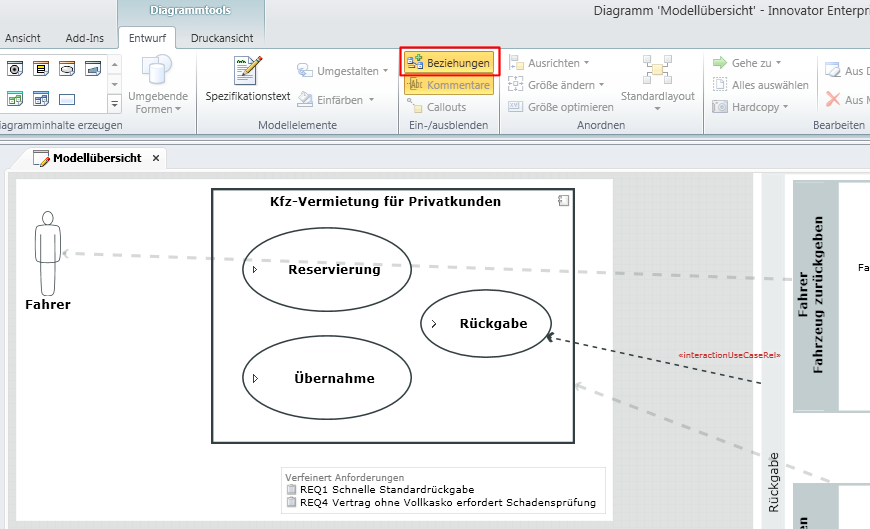
Visible relationships are shown in black and hidden relationships are shown in gray in selection mode.
How to proceed
- Select one of the elements concerned.
-
Select Design>Display>Relationships (Ctrl+Shift+R).
The diagram area is grayed.
-
Select the relationships to be shown/hidden.
Visible relationships are shown in black. Hidden relationships are shown in gray.
-
Select Design>Display>Relationships (Ctrl+Shift+R).
Normal view is shown. Relationships are shown or hidden depending on their settings.