Moving Elements in the Diagram
You need to select elements before they can be moved in the diagram.
Moving Selected Elements Using the Mouse and the Left Mouse Button Pressed
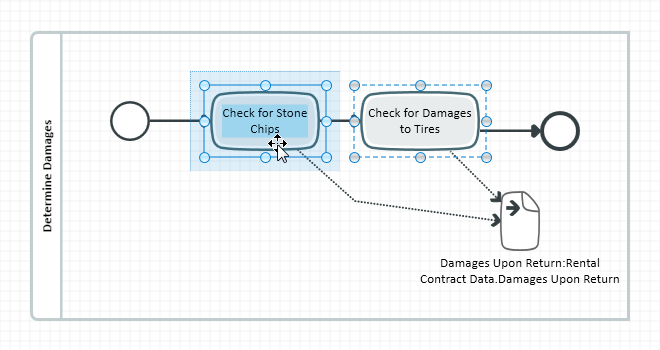
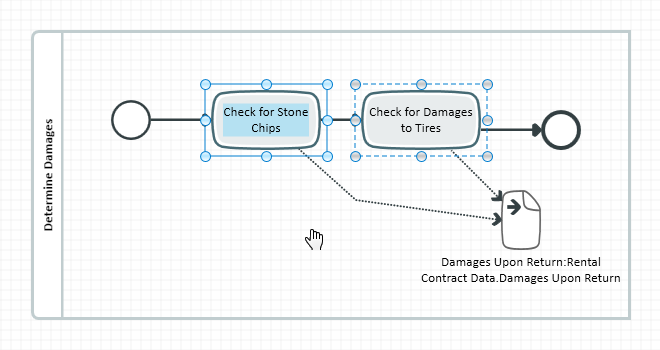
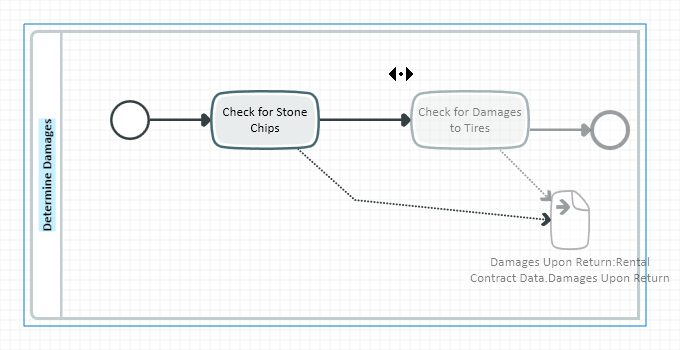
You need to hover the mouse pointer over one of the elements you want to move. This state can be recognized because the mouse pointer changes to crossed arrows (move). Keep the left mouse button pressed to move the selected elements within the surrounding container.
-
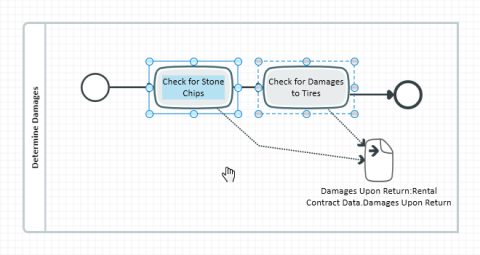
If the mouse is not on an element which can be selected, the mouse pointer changes to a hand instead (link selection). Moving the mouse with the left mouse button pressed moves the diagram section; if [Shift] is pressed at the same time, a capture frame appears.
-
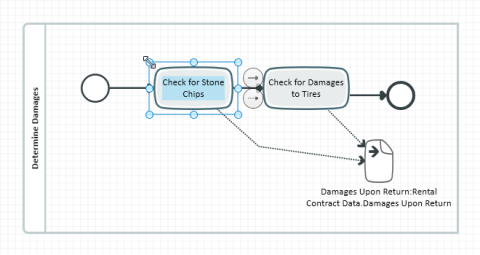
If the mouse is on one of the handles of a selection rectangle, the mouse pointer changes to a double arrow (change size). Moving the mouse with the left mouse button pressed changes the size of the selected element.
-
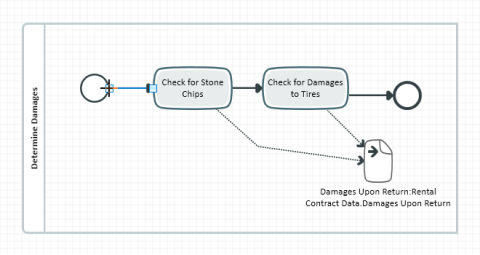
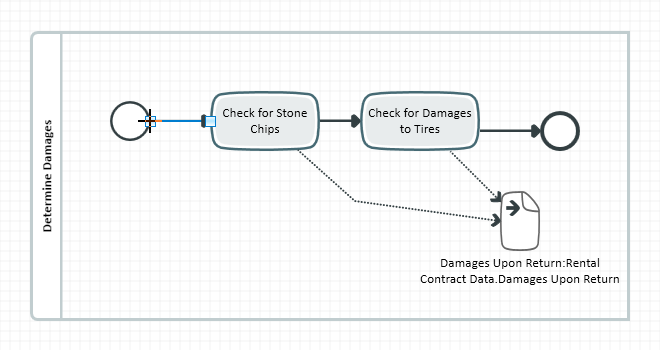
If the mouse is on one of the handles of a selected link, the mouse pointer changes to a cross instead (precision selection). Moving the mouse with the left mouse button pressed moves the selected handle.

Moving Elements Using the Mouse and the Right Mouse Button Pressed
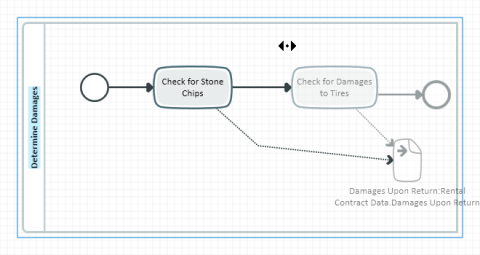
The mouse pointer becomes an up/down or left/right mouse pointer, depending on the direction you started to move first
Moving the mouse with the right mouse button pressed affects all elements within the container you started moving in (e.g. a process frame). The container shows the primary selection and all elements in this container that are to the right or below the mouse pointer (depending on the direction you are moving in) make up the secondary selection.
-
If not using the modifier key, moving to the right or down increases the distance between the elements in the secondary selection and the other elements; moving to the left or down decreases the distance between the elements in the secondary selection and the other elements.
-
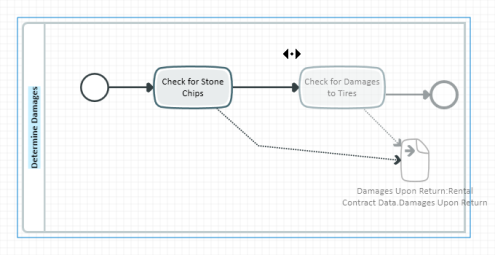
If the [Ctrl] key is pressed, the surrounding container is automatically expanded as soon as you try to move to the right or down outside of the container.

Moving Edge Labels
Edge labels are moved as default when moving edges which have a label or elements at the end of the edge.
If you manually move and position an edge label, then this automatic process is overridden and the label is not moved too.
You can activate automatic positioning of the edge label by double-clicking on the edge. It is also possible to select the edge and the Design>Arrange>Standard Layout>Standard Layout (Ctrl+F8) command.
Moving Using the Keyboard
You can also use the arrow keys to move selected elements. Each time you press an arrow key, the selected elements are moved one raster in the corresponding direction.