Selecting Elements in the Diagram
You can select elements in a diagram by clicking on them with the mouse or by dragging a "rubber band" around them.
Selecting by Clicking
-
A click replaces the previous selection with the element selected.
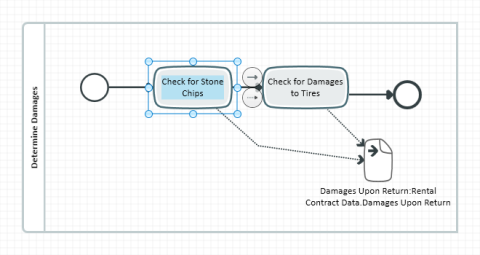
If you click on the background grid, Innovator selects the element which surrounds that point. Looking at the example above, if you click to the left of the node "Check for stone chips", the surrounding node "Record damage" is selected. If there is no surrounding node, the diagram itself is selected.
-
If the [Shift] or Ctrl key is held down while clicking, the existing selection is extended, or an element already selected is removed from the selection. In other words, the action switches between the two states "selected" and "not selected" for an element in the diagram.
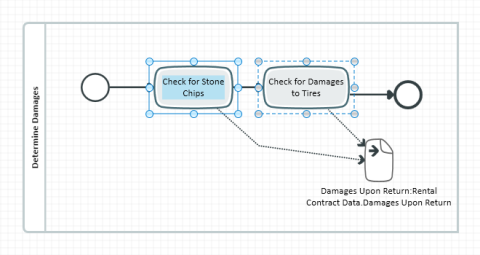
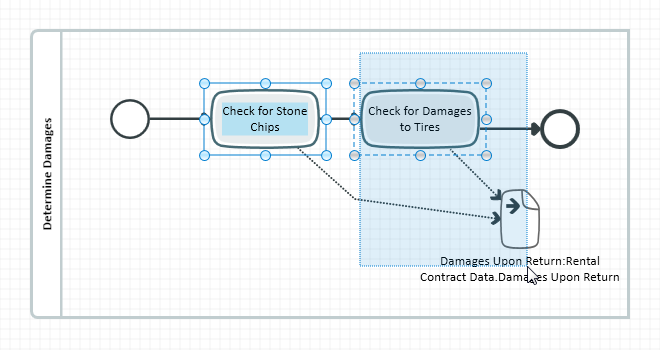
If multiple elements are selected, there is always exactly one which displays the so-called "primary selection". This element can be recognized by a solid frame; the other elements in the selection (the so-called "secondary selection") are shown with dashed frames. Which element in a selection set forms the primary selection influences the way in which many commands are executed – e.g. commands use the primary selection to arrange elements in the diagram, in order to arrange the elements in the secondary selection in relation to this.
If an element which is already selected is clicked on again, this action makes the element in question the primary selection.
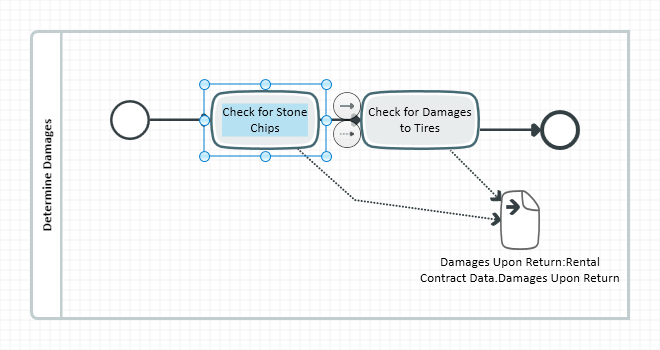

Selecting using a Rubber Band
Before pulling a rubber band, you need to press the [Shift] key and keep it pressed throughout selection; this is because moving the mouse without the key pressed is used for moving the diagram section shown..
The mouse behavior described here can be switched in the Options dialog in the Mouse tab in the Drag Effect in Diagrams section.
-
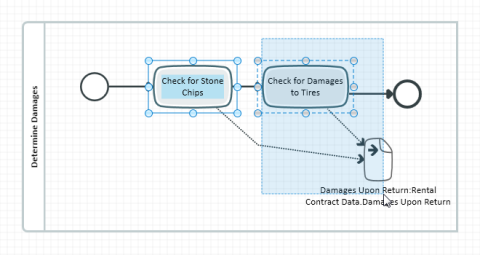
If the [Shift] key is held down while dragging, the selection is extended by all the nodes that are completely within the frame drawn by pressing the left mouse button.
-
If the [Ctrl] key is held down while dragging, the previous selection is canceled and the selection is extended by all the nodes that are completely within the frame drawn by pressing the left mouse button.
Further Selection Options
The Design>Editing>Select>Select All (Ctrl+A) command
-
Selects all diagram nodes if no other element is already selected in the diagram
-
selects either all the nodes or all the edges in the diagram according to the primary selection, if an element in the diagram is already selected
The Design>Editing>Select>Select Diagram Content (Ctrl+Shift+A) command selects all nodes and edges in the diagram.