To export specific DDL files, you can create your own DDL configurations to complement the delivered configurations.
Familiarizing Yourself with DDL Configurations
Purpose
Relational database systems are created and maintained when a database schema is exported out of the Innovator model.
The preconfigured DDL configurations enable the convenient definition of contents and formating of DDL files for all common relational database systems.
For specific requirements, you can define your own DDL configurations which are offered for selection in addition to the installed configurations.
Installed DDL Configurations
The DDL configurations included within scope of delivery can be found in the directory path Innovator settings are managed in ($INODIR).
By default, this is %PROGRAMDATA%\Innovator\16.1\java\Innovator.codegen\configuration\de\mid\data\
oAW class paths in the classPath.xml file are also managed here.
The DDL configuration files included within the scope of delivery have the name pattern ddlexport_<database system>.xml. Innovator reads all files that have the name pattern ddlexport*.xml as DDL configuration files and displays the contained workflows for selection as DDL configurations.
If a user closes the Export DDL File dialog with OK, the settings (shown sections and activated parameters) are saved on a user-specific basis for all DDL configurations.
Your Own DDL Configurations
You can create your own DDL configurations by creating one or more XML files with the required XML structure. You can also specify supplementary class paths for a configuration.
You can configure the following:
-
DDL configuration in the selection of the Export DDL File dialog (Workflow XML element)
-
Structure headings of a DDL configuration (Section and Subsection XML elements)
-
DDL generation options (oAW call parameters) (Option XML element)
-
Supplementary workflow class paths (ClassPath and ClassPathEntry XML elements)
Editing DDL Configurations
oAW Workflow
The Workflow XML element must have the following parameters:
-
displayname
Display name of the DDL configuration
-
name
Name of the oAW workflow file (always db_workflow.oaw)
-
dbtype
Database type; permitted database types are "DB2ZOS", "DB2LUW", "Informix", "MSSQL", "MySQL", and "Oracle"
-
prj.root.dir
Default output directory
-
filename
Default name of output file
Example with «placeholders»:
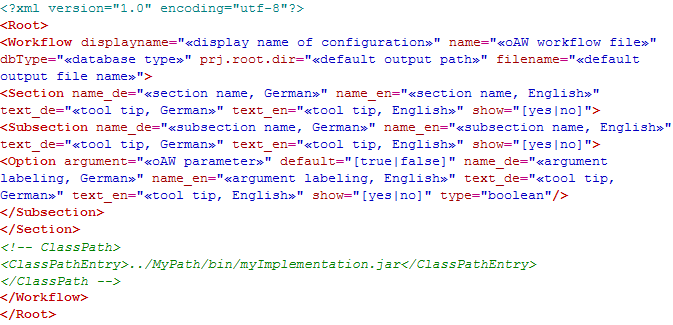
Sections and Subsections
The Section and Subsection XML elements must have the following parameters:
-
name_de and name_en
Localized display name of the section or subsection which can be hidden
-
text_de and text_en
Localized tool tip of the section or subsection which can be hidden
-
show
Default setting for showing (yes) or hiding (no) the section or subsection
oAW Call Parameters
The Option XML element, which normally occurs multiple times, must have the following parameters:
-
argument
oAW call parameter for DDL generation
-
default
Default setting for the activation (true) or deactivation (false) of the parameter
-
name_de and name_en
Localized display name of the parameter
-
text_de and text_en
Parameter’s localized tool tip
-
show
Default setting for showing (yes) or hiding (no) tthe parameter
-
type
Parameter type (normally boolean)
 Creating DDL Configuration
Context
As the person setting up DDL configurations, you want to set up a specific configuration for the person who performs the DDL generation.
By default, the DDL configuration files are found in the %PROGRAMDATA%\Innovator\16.1\java\Innovator.codegen\configuration\de\mid\data\ directory. You also create your modified DDL configuration file in this directory, using the name pattern ddlexport_<Datenbanksystem etc.>.xml.
How to proceed
-
Create a DDL configuration file - normally on the basis of the delivered configuration file for your database system.
-
Edit the configuration file with a text editor or XML editor.
-
Create further options there or change the options. In particular, assign a unique display name.
-
Save the DDL configuration file.
Related Topics
