You can assign types to model elements in the diagram using drag-and-drop, the mini toolbar or a wizard.
Typing Elements
Prerequisites
A diagram exists, is opened and is reserved for editing. Linked elements are visible.
Context
You can drag typing elements from the gallery, Model Structure or Details tool windows and drop them on the element to be typed.
Example: Typing an Intermediate Event with the Event Definition Message
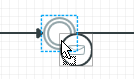
You can find certain types using the selected element's mini toolbar.
How to proceed
-
Drag the typing element from the gallery, Model Structure or Details tool windows and drop it on the element you want to type.
The element's type is modified.
-
Select the element you want to type and select the type from the context menu's mini toolbar.
The element's type is modified.
Changing the Element Type
Prerequisites
Typed model element.
Context
A model element's type can be a stereotype (e.g. for classes) or a particular property (e.g. task type for tasks, semantic data type for ER attributes). This is why there are various ways to modify or remove the type.
You can modify the element type in the Model Structure and in the Model Element List with Start>Organize>Change Element Type or in the diagram with Design>Model Elements>Refactor>Change Element Type.
How to proceed
-
To change a selected element's type, select Start>Organize>Change Element Type and select the type from the wizard of the same name that you want to convert the elements into. Click on Next and confirm the effects listed with Finish.
The element's type is converted and the element is modified accordingly in the diagram.
-
To change a property's type, click in the Properties tool window in the line with the respective property on the
 or
or  selection icons and select the type in the selection dialog or drop-down list. Click on
  to remove the type.
It is also possible to use the mini toolbar to change or remove some properties.The element's type is modified and the element is modified accordingly in the diagram.
 Related Topics
